 Parrot Cart developers
What your release needs
Three things are required. The rest are optional.
| Part | What it is | |
|---|---|---|
| The .CVP | Required | Your plugin, built with the SDK. Its image can be up to 2 MB less 4K. |
| README | Required | It goes inside the .CVP so the cart can show it. The SDK puts your README.md there for you. |
| LICENSE | Required | Your public repo needs a LICENSE file at the release’s tag. |
| Release notes | Optional | The text of your GitHub release. We show it for each version. |
| Screenshots | Optional | Up to three PNGs, each 256 × 192, attached to your release. |
| Two icons | Optional | Two 8 × 8 one-color icons, one for the plugin and one for the files it opens. |
One README for the web and the TV
Write README.md once. It shows on your plugin’s page here, and the SDK adds it to the .CVP for the cart.
The starter kit has this as docs/readme-spec.md.
30 × 19What to write
People read it on the TV, often with no computer nearby.
What it does
Start with a line or two about what it does. The cart shows 19 lines at a time.
How to use it
List the controls, and say which folder the files go in.
Credits
Under a Credits heading, say whose work it uses. This part is required.
Source
Add a line with the word “source” and a link to your code. This part is required too.
How the SDK converts it
It happens each time you build your plugin.
| Markdown | On the cart |
|---|---|
| A heading | It’s shown in capitals, with a blank line before and after. |
| A paragraph | It’s wrapped to 30 characters. |
| A list | Each item starts with - or 1., and wrapped lines are indented under the first word. |
| A link | You get the text, then the URL. A long URL goes on a line by itself. |
| Code | Inline code stays as plain text. A code block stays as it is, but each line is cut at 30 characters. |
| Bold and italics | They’re dropped, since the cart only has one style of text. |
| An image | It shows up as [image: alt]. |
| A table | Each cell becomes a header: value line, row by row. |
| Raw HTML | The tags are dropped, but the text inside them stays. |
| Non-ASCII characters | Curly quotes, dashes and accented letters become plain look-alikes. Anything else becomes ?. |
cvcart_plugin(sweeper ID author.sweeper NAME "Star Sweeper" VERSION 1.0.0
               README README.md)

python3 cvreadme.py README.md    # prints what the cart will show
Both come with the starter kit. If the text is over 16384 bytes, the SDK cuts it at the end of a line and adds a last line that says so.
The format in the .CVP
You only need this if you build a .CVP without the SDK.
| Where | Type | What |
|---|---|---|
| Offset 280 | u32, little-endian | Where the text starts, counted from the start of the file. A 0 means there’s no README. |
| Offset 284 | u32, little-endian | The length of the text in bytes, up to 16384. |
| The text | After the image | It can only hold printable ASCII (0x20 to 0x7E) and line feeds. No line can be over 30 characters, and the last line ends with a line feed. |
| SHA-256 | Unchanged | The image’s hash doesn’t include the README. Changing the README won’t make the cart copy the plugin again. |
What we check
We never change your text. Your page shows it exactly as it is in the .CVP.
| Check | Rule | If it fails |
|---|---|---|
| In bounds | The text starts after the image and ends inside the file. | We can’t list it. |
| Length | Up to 16384 bytes. | We can’t list it. |
| Characters | Only 0x20 to 0x7E and line feeds, with no tabs or carriage returns. | We can’t list it. |
| Width | Up to 30 characters per line. | We can’t list it. |
| No README at all | Both fields are 0. Plugins built before the README existed look like this. | We list it, with a note on its page. |
On your plugin’s page
We show the README.md from your release’s tag, with GitHub’s Markdown formatting.
| Part | What happens |
|---|---|
| Shown | Headings, lists, task lists, tables, code, quotes and links. |
| Images | They show up as links, because the plugins site doesn’t load anything from other sites. |
| Raw HTML | It’s dropped, along with any scripts or styles, but the text stays. |
| Links | Only https links work. Relative links point to your repo at the release’s tag. |
| Size | It can be up to 64 KB. If it’s bigger, we link to it instead. |
Screenshots at the console’s real size
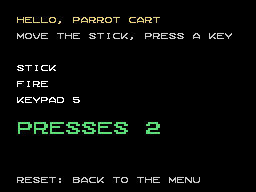
Attach up to three PNGs to your release, each 256 × 192.
The starter kit has this as docs/screenshots.md.
256 × 192Requirements
The console’s picture is 256 × 192 pixels.
| Rule | |
|---|---|
| How many | Up to three. |
| Format | A PNG, not animated. |
| Size | Exactly 256 × 192 pixels, with no border, scaling or filters. |
| File size | Up to 100 KB each. A real screen is usually only a few KB. |
| Names | screenshot-1.png, screenshot-2.png and screenshot-3.png, in lowercase. |
| Where | Attach them to your GitHub release, next to the .CVP. |
What to show
The plugin itself
Show the plugin’s screens, starting with the one people see most.
Nothing you can’t share
For an emulator, show homebrew or your own test files instead of a commercial game.
One set per release
If a release has several .CVP files, they share the screenshots.
How to take one
Use any ColecoVision emulator that can save the picture at its real size.
Save at 1x
Turn off scaling, filters and scanlines.
Crop the border
If the file is bigger than 256 × 192, it includes the border. Crop it out.
Save an indexed PNG
The console only has 15 colors, so an indexed PNG is exact and small.
Screenshots we can’t use
We can’t list your plugin until every screenshot is right. We’ll tell you which one has a problem and why.
| Problem | For example |
|---|---|
| The wrong size | 640 × 480, 280 × 216 with the border, or a photo of the TV. |
| Not a PNG | A renamed JPEG, a broken upload or an animated PNG. |
| Over 100 KB | It was usually scaled up, or saved in full color from a photo. |
| A fourth screenshot | screenshot-4.png or higher. |
Where they show up
They show up in these places once your plugin is listed.
| Place | How |
|---|---|
| Your plugin’s page | Each one sits in a TV frame, scaled up without blur. |
| The plugin list | The first one shows as a thumbnail. |
| registry.json | It links to each one, for apps that install plugins. |
Two 8 × 8 icons
You need one for the plugin and one for the files it opens. Each pixel is on or off, and the menu sets the color.
The starter kit has this as docs/icons.md.
/PLUGINSWhat an icon is
Both icons together take 16 bytes of the .CVP’s header.
| Rule | |
|---|---|
| Size | 8 × 8 pixels. Each pixel is on or off. |
| The plugin’s icon | 8 bytes at header offset 264. It shows next to the plugin in Apps, in its group on Home, in the Plugin Manager and in Open with. A plugin that only opens files shows it in Open with, and the plug everywhere else. |
| The file icon | 8 bytes at header offset 272. It shows next to each file the plugin opens. |
| One byte per row | The top row comes first. Bit 7 is the left pixel. |
| Color | The menu sets it. Plugin icons are magenta and file icons are light green. The background is black, or dark blue on the selected row. |
| All zeros | That means no icon. The menu shows its window icon for a plugin that starts on its own, the plug in Open with, and the plain file icon for a file. |
| Per screen | A page that lists plugins shows up to 22 different plugin icons, and Open with up to 7. A folder shows up to 6 different file icons. Any more get the menu’s icons. |
Start from a file
Download one and change it, or pick a ready-made icon. They’re free to use in any plugin.
The .txt file the SDK reads
It’s eight lines of eight characters. A # is a pixel and a . is empty.
padtest_icon.txt
..####..
.#....#.
#..##..#
#......#
#..##..#
#..##..#
.#....#.
..####..
In the header
3c 42 99 81 99 99 42 3cThe SDK ignores blank lines and spaces around a line. Anything else stops the build.
cvcart_plugin(padtest ID author.padtest NAME "Pad Test" VERSION 1.0.0
               ICON padtest_icon.txt FILE_ICON padtest_file_icon.txt)

mkcvp.py IN.uf2 OUT.cvp ... --icon padtest_icon.txt --file-icon padtest_file_icon.txt
Tips for a clear icon
Menu rows touch, so there’s no gap between one icon and the next.
Leave an edge clear
The menu’s icons leave the top row, the bottom row and the right column empty, so they don’t run into each other or into the name beside them.
Use solid shapes
There’s only one color, so the outline does the work. Solid shapes look better than thin lines on a TV.
Check it on the selected row
The selected row is dark blue. The editor shows both backgrounds.
Check your plugin before you release it
Clone the plugins site’s repo and run this command. It shows your plugin’s details, your README and any problem that would keep it from loading on the cart.
python3 tools/cvp.py YOURPLUGIN.CVP