 Parrot Cart plugins
LUA.CVPOn the TV
These are the author’s screenshots, shown pixel for pixel.
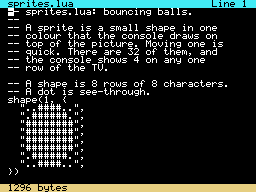
256 × 192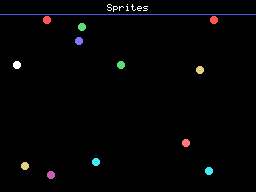
256 × 192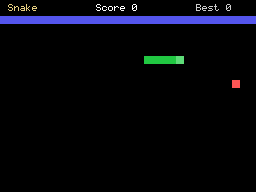
256 × 192README on the cart
This is what the cart shows for this plugin. It’s 107 lines long and 30 characters wide.
2,124 bytesPlain text
LUA

Write programs for the
ColecoVision in Lua, on the
console, and run them. Lua is
a small programming language
that's easy to learn. A script
can draw, move sprites, play
sound and read the
controllers.

Scripts are .lua files in the
/LUA folder of the card. Open
one from the cart's menu, or
start Lua from Apps on the
menu's Home page to see the
list and make a new one. You
need a USB keyboard to type.
Without one you can still open
scripts and run them.

CONTROLS

In the editor, on a USB
keyboard or the controller's
keypad:

- Ctrl+R, or keypad 4: save
  the script and run it
- Ctrl+S, or keypad 1: save
- Ctrl+O, or keypad 2: open
  another script from /LUA
- Ctrl+N, or keypad 3: start a
  new script
- Arrow keys, Home, End, Page
  Up and Page Down, or the
  stick: move around

While a script runs:

- Esc, or the keypad's * held
  for two seconds: stop it and
  go back to the editor
- RESET: back to the cart's
  menu, as always

If a script has a mistake, Lua
stops it, puts the cursor on
the line and shows what went
wrong.

WHAT YOU NEED

- A USB keyboard to write
  scripts. Plug it into a
  powered USB hub, and the hub
  into the cart. Game pads and
  a mouse go in the same hub.
- Scripts and their saves live
  in /LUA on the card. Lua
  makes the folder the first
  time it saves a new script.

The first lines of a script
might be:

function draw()
  cls()
  print("HELLO", 100, 90)
end

Every function is described in
the guide:
https://github.com/plasticbugs
/parrot-plugin-lua/blob/main/d
ocs/lua.md

CREDITS

- Lua 5.4.8, by Roberto
  Ierusalimschy, Luiz Henrique
  de Figueiredo and Waldemar
  Celes at PUC-Rio, MIT:
  https://www.lua.org
- Parrot Cart plugin template
  and SDK, by the Parrot Cart
  contributors, MIT:
  https://github.com/plasticbu
  gs/parrot-plugin-template
- TinyUSB, by Ha Thach and
  contributors, MIT:
  https://github.com/hathach/t
  inyusb
- Raspberry Pi Pico SDK, BSD
  3-Clause:
  https://github.com/raspberry
  pi/pico-sdk

Source:
https://github.com/plasticbugs
/parrot-plugin-lua

LICENSE

MIT. Lua keeps its own MIT
license, in
lua/vendor/lua-5.4.8/LICENSE.
README
This is the README.md from release v0.1.4. Images show up as links.
Lua
Write programs for the ColecoVision in Lua, on the console, and run them. Lua is a small programming language that’s easy to learn. A script can draw, move sprites, play sound and read the controllers.
Scripts are .lua files in the /LUA folder of the card. Open one from the cart’s menu, or start Lua from Apps on the menu’s Home page to see the list and make a new one. You need a USB keyboard to type. Without one you can still open scripts and run them.
Controls
In the editor, on a USB keyboard or the controller’s keypad:
- Ctrl+R, or keypad 4: save the script and run it
- Ctrl+S, or keypad 1: save
- Ctrl+O, or keypad 2: open another script from
/LUA - Ctrl+N, or keypad 3: start a new script
- Arrow keys, Home, End, Page Up and Page Down, or the stick: move around
While a script runs:
- Esc, or the keypad’s * held for two seconds: stop it and go back to the editor
- RESET: back to the cart’s menu, as always
If a script has a mistake, Lua stops it, puts the cursor on the line and shows what went wrong.
What you need
- A USB keyboard to write scripts. Plug it into a powered USB hub, and the hub into the cart. Game pads and a mouse go in the same hub.
- Scripts and their saves live in
/LUAon the card. Lua makes the folder the first time it saves a new script.
The first lines of a script might be:
function draw()
  cls()
  print("HELLO", 100, 90)
end
Every function is described in the guide: https://github.com/plasticbugs/parrot-plugin-lua/blob/main/docs/lua.md
Credits
- Lua 5.4.8, by Roberto Ierusalimschy, Luiz Henrique de Figueiredo and Waldemar Celes at PUC-Rio, MIT: https://www.lua.org
- Parrot Cart plugin template and SDK, by the Parrot Cart contributors, MIT: https://github.com/plasticbugs/parrot-plugin-template
- TinyUSB, by Ha Thach and contributors, MIT: https://github.com/hathach/tinyusb
- Raspberry Pi Pico SDK, BSD 3-Clause: https://github.com/raspberrypi/pico-sdk
Source: https://github.com/plasticbugs/parrot-plugin-lua
Examples
lua/examples has four scripts. Copy them into /LUA on the card.
| Script | What it shows |
|---|---|
hello.lua | text, a shape that moves, the stick, a sound |
sprites.lua | twelve sprites bouncing around |
colours.lua | a pattern in all 15 colours, drawn a little at a time |
snake.lua | a small game with a score that’s saved on the card |
On your computer
With the starter kit you can write and try scripts on your
computer in a simulator, and build a script into a plugin with a name and
icon in the cart’s menu. The guide has the steps (docs/lua.md).
Build it yourself
You need the Raspberry Pi Pico SDK 2.1.1, an Arm GNU toolchain, CMake, Ninja, Python 3, sjasmplus and picotool. Releases are built with the Arm GNU Toolchain 9-2019-q4 (GCC 9.2.1) and picotool 2.3.1. With those you get the same file, byte for byte.
cmake -B build -G Ninja -DPICO_SDK_PATH=$HOME/pico-sdk
ninja -C build
This makes build/LUA.CVP. Copy it into the /PLUGINS folder on the card.
On Ubuntu, tools/ci/setup.sh installs the same tools that GitHub uses to
build each release.
CART-README.md is the text the cart shows on the plugin’s page. It is
the start of this README, with a short license section added.
License
The plugin is under the MIT license (LICENSE). Lua is under the MIT
license too, in lua/vendor/lua-5.4.8/LICENSE. THIRD-PARTY.md lists the
parts that came from elsewhere, and their licenses.
Release details
We read these from GitHub when the plugin was listed.
- Release
v0.1.4, 2026-11-22- Image
- 256,000 bytes, loaded into RAM
- Plugin API
1- Source
- Code at
v0.1.4 - License
- MIT License
- Credits
- Lua 5.4.8, by Roberto Ierusalimschy, Luiz Henrique de Figueiredo and Waldemar Celes at PUC-Rio, MIT:; Parrot Cart plugin template and SDK, by the Parrot Cart contributors, MIT:; TinyUSB, by Ha Thach and contributors, MIT:; Raspberry Pi Pico SDK, BSD 3-Clause: Source
- SHA-256
- 56cd46367768c375b28515643fe41ef0505426418b9c14bfc4c149963ffbbff7
The code
Every plugin here has a public repo on GitHub, so you can read how it works.
Release notes
The newest version is first.
0.1.4
2026-11-22,
v0.1.4- Lua starts without a file too, so the cart’s menu lists it in Apps. It opens with the list of scripts on the card.
- The sound goes out to the console every 0.1 s as well as whenever a script changes it. The console misreads a byte from the cart now and then, and before this one bad byte could leave a note playing until RESET.
- A USB pad, keyboard, mouse or MIDI keyboard on a powered hub is found when it was plugged in before Lua started, and when it’s plugged in or pulled out while Lua runs. With some hubs it wasn’t found before.
0.1.0
2026-11-18,
v0.1.0First release.
Put it on your cart
Download LUA.CVP
The SHA-256 is above if you want to check the file.
Copy it to /PLUGINS
That folder is on the cart’s microSD card.
Put your files in /LUA
Your .lua files go in this folder.
Start it
Press B for Home, open Apps, pick Lua and press A. Or open one of your files on the SD card.