 Parrot Cart plugins
PSGSYNTH.CVPOn the TV
These are the author’s screenshots, shown pixel for pixel.
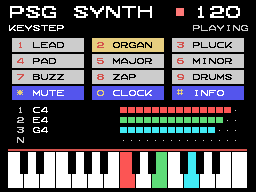
256 × 192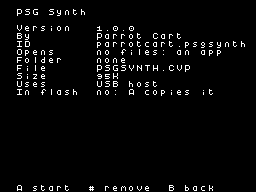
256 × 192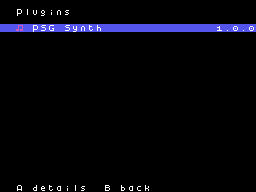
256 × 192README on the cart
This is what the cart shows for this plugin. It’s 102 lines long and 30 characters wide.
2,119 bytesPlain text
PSG SYNTH

This plugin turns the
ColecoVision's sound chip into
a small synth that you play
from a USB MIDI keyboard. It
has nine sounds and plays
three notes at a time, plus
noise. It doesn't open any
files.

SETUP

Copy PSGSYNTH.CVP into the
/PLUGINS folder on the card.
Start PSG Synth from the
Plugins page in the menu.

The cart can't power a
keyboard. Plug the keyboard
into a USB-C hub with its
charger plugged in, or into a
powered USB-A hub on an
adapter. Then plug the hub
into the cart.

CONTROLS

On the ColecoVision
controller:

- Keypad 1 to 9 picks the
  sound. The sounds are lead,
  organ, pluck, pad, major
  arpeggio, minor arpeggio,
  buzz bass, zap and drums.
- Keypad * silences every
  note.
- Keypad 0 or left fire starts
  and stops the MIDI clock.
- Keypad # opens the info
  page, with the USB details
  and the controls. Press it
  again to go back.
- Push the joystick up or down
  to change the tempo by 1.
  Hold it to keep going.
- Push the joystick right or
  left to change the tempo by
  10.
- Press RESET on the console
  to go back to the menu.

On the MIDI keyboard:

- The keys play notes, and how
  hard you play sets the
  volume.
- The pitch bend wheel bends
  notes by up to 2 semitones.
- Program change 0 to 8 picks
  a sound.
- With the drums sound, each
  key plays a drum. C is the
  kick, D is the snare and F#
  is the closed hi-hat, in
  every octave.

NOTES

- The cart sends MIDI clock to
  the keyboard. The clock
  starts at 120 BPM when the
  keyboard is found, and the
  tempo goes from 30 to 300
  BPM.
- The beat light at the top of
  the screen blinks on each
  beat while the clock runs.
  It's red on the first beat
  of each bar.
- For the keyboard's
  arpeggiator or sequencer to
  follow the cart, set its
  sync source to USB.
- Notes below A2 play an
  octave up.
- The second line of the
  screen shows the keyboard's
  name, or what to plug in. It
  also says whether the clock
  is playing.

CREDITS

- TinyUSB by Ha Thach, under
  the MIT license. The source
  is at
  https://github.com/hathach/t
  inyusb
- The plugin itself is by
  Parrot Cart.
README
This is the README.md from release v1.0.0. Images show up as links.
PSG Synth
This plugin turns the ColecoVision’s sound chip into a small synth that you play from a USB MIDI keyboard. It has nine sounds and plays three notes at a time, plus noise. It doesn’t open any files.
Setup
Copy PSGSYNTH.CVP into the /PLUGINS folder on the card. Start PSG Synth from the Plugins page in the menu.
The cart can’t power a keyboard. Plug the keyboard into a USB-C hub with its charger plugged in, or into a powered USB-A hub on an adapter. Then plug the hub into the cart.
Controls
On the ColecoVision controller:
- Keypad 1 to 9 picks the sound. The sounds are lead, organ, pluck, pad, major arpeggio, minor arpeggio, buzz bass, zap and drums.
- Keypad * silences every note.
- Keypad 0 or left fire starts and stops the MIDI clock.
- Keypad # opens the info page, with the USB details and the controls. Press it again to go back.
- Push the joystick up or down to change the tempo by 1. Hold it to keep going.
- Push the joystick right or left to change the tempo by 10.
- Press RESET on the console to go back to the menu.
On the MIDI keyboard:
- The keys play notes, and how hard you play sets the volume.
- The pitch bend wheel bends notes by up to 2 semitones.
- Program change 0 to 8 picks a sound.
- With the drums sound, each key plays a drum. C is the kick, D is the snare and F# is the closed hi-hat, in every octave.
Notes
- The cart sends MIDI clock to the keyboard. The clock starts at 120 BPM when the keyboard is found, and the tempo goes from 30 to 300 BPM.
- The beat light at the top of the screen blinks on each beat while the clock runs. It’s red on the first beat of each bar.
- For the keyboard’s arpeggiator or sequencer to follow the cart, set its sync source to USB.
- Notes below A2 play an octave up.
- The second line of the screen shows the keyboard’s name, or what to plug in. It also says whether the clock is playing.
Credits
- TinyUSB by Ha Thach, under the MIT license. The source is at https://github.com/hathach/tinyusb
- The plugin itself is by Parrot Cart.
Build it yourself
You need the Raspberry Pi Pico SDK 2.1.1, an Arm GNU toolchain, CMake, Ninja, Python 3, sjasmplus and picotool. Releases are built with the Arm GNU Toolchain 9-2019-q4 (GCC 9.2.1) and picotool 2.3.1. With those you get the same file, byte for byte.
This plugin uses the pico-sdk’s own copy of TinyUSB. Run
git submodule update --init lib/tinyusb in your pico-sdk folder first.
cmake -B build -G Ninja -DPICO_SDK_PATH=$HOME/pico-sdk
ninja -C build
This makes build/PSGSYNTH.CVP. Copy it into the /PLUGINS folder on the card.
On Ubuntu, tools/ci/setup.sh installs the same tools that GitHub uses to
build each release.
CART-README.md is the text the cart shows on the plugin’s page. It is
the start of this README.
License
The plugin is under the MIT license (LICENSE). THIRD-PARTY.md lists
the parts that came from elsewhere, and their licenses.
Release details
We read these from GitHub when the plugin was listed.
- Release
v1.0.0, 2026-11-17- Image
- 93,952 bytes, loaded into RAM
- Plugin API
1- Source
- Code at
v1.0.0 - License
- MIT License
- Credits
- TinyUSB by Ha Thach, under the MIT license. The source is at https://github.com/hathach/tinyusb; The plugin itself is by Parrot Cart.
- SHA-256
- 1fc83b462a9aa4bc3e8f251bf8449e209fceed453978e1146b0019e08b15c135
The code
Every plugin here has a public repo on GitHub, so you can read how it works.
Release notes
The newest version is first.
1.0.0
2026-11-17,
v1.0.0
Put it on your cart
Download PSGSYNTH.CVP
The SHA-256 is above if you want to check the file.
Copy it to /PLUGINS
That folder is on the cart’s microSD card.
Start it
Press B for Home, open Apps, pick PSG Synth and press A.