 Parrot Cart plugins
TEXTEDIT.CVPOn the TV
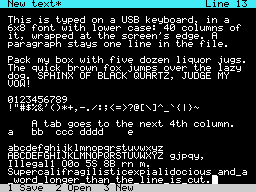
These are the author’s screenshots, shown pixel for pixel.
256 × 192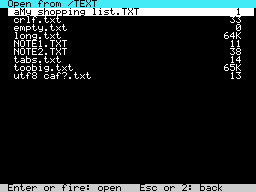
256 × 192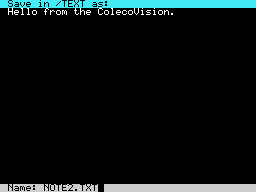
256 × 192README on the cart
This is what the cart shows for this plugin. It’s 114 lines long and 30 characters wide.
2,360 bytesPlain text
TEXT EDITOR

Write plain text on the
ColecoVision with a USB
keyboard, and keep it as .txt
files on the card.

SETUP

Copy TEXTEDIT.CVP into the
/PLUGINS folder on the card.
Start Text Editor from Apps on
the menu's Home page, or pick
a .txt file on the card and it
opens in the editor.

The cart can't power a
keyboard. Plug the keyboard
into a powered USB hub, and
the hub into the cart.

TYPING

The screen is 40 columns wide
and long lines wrap at its
edge. The wrap is only on the
screen. In the file a
paragraph stays one line.

- Arrows move the cursor. Home
  and End go to the ends of
  the line on the screen, and
  with Ctrl to the start and
  end of the text.
- Page Up and Page Down move a
  screen at a time.
- Backspace and Delete remove
  a character.
- Tab is kept as a tab and
  shown to the next 4th
  column.
- A key held down repeats.

The top line shows the file's
name, a * when there are
changes that aren't saved, and
the line the cursor is on.

FILES

Use the keypad on the
console's controller, or the
keyboard.

- 1 or Ctrl+S: save.
- 2 or Ctrl+O: open. Pick a
  file with the arrows or the
  stick, then Enter or a fire
  button. Esc goes back.
- 3 or Ctrl+N: a new text.

Open lists the .txt files in
the /TEXT folder, and in the
folder the current file came
from.

The first time you save a new
text, the editor asks for its
name and offers NOTE1.TXT,
NOTE2.TXT and so on. Type
another name if you like and
press Enter. New files go in
/TEXT, which the editor makes
if the card doesn't have it.

If there are changes that
aren't saved, open and new ask
first. Press the same key
again to drop the changes, or
1 to save them.

A file can be up to 127 KB.
Lines keep the endings the
file had. Characters outside
plain ASCII show as ? and are
saved as they were.

IF THE POWER GOES

A save writes the text to a
spare file first (EDITSAV1.TMP
or EDITSAV2.TMP, next to your
file), then replaces your
file, then removes the spare.
If the power goes in the
middle, the next start says a
save was cut short. Press 1 to
finish it or 3 to drop it.

RESET goes back to the menu
straight away. Save first, or
the changes are lost.

CREDITS

- The 6x8 font was drawn for
  the Parrot Cart SDK.
- TinyUSB by Ha Thach, under
  the MIT license. The source
  is at
  https://github.com/hathach/t
  inyusb
- The plugin itself is by
  Parrot Cart.
README
This is the README.md from release v0.1.3. Images show up as links.
Text Editor
Write plain text on the ColecoVision with a USB keyboard, and keep it as .txt files on the card.
Setup
Copy TEXTEDIT.CVP into the /PLUGINS folder on the card. Start Text Editor from Apps on the menu’s Home page, or pick a .txt file on the card and it opens in the editor.
The cart can’t power a keyboard. Plug the keyboard into a powered USB hub, and the hub into the cart.
Typing
The screen is 40 columns wide and long lines wrap at its edge. The wrap is only on the screen. In the file a paragraph stays one line.
- Arrows move the cursor. Home and End go to the ends of the line on the screen, and with Ctrl to the start and end of the text.
- Page Up and Page Down move a screen at a time.
- Backspace and Delete remove a character.
- Tab is kept as a tab and shown to the next 4th column.
- A key held down repeats.
The top line shows the file’s name, a * when there are changes that aren’t saved, and the line the cursor is on.
Files
Use the keypad on the console’s controller, or the keyboard.
- 1 or Ctrl+S: save.
- 2 or Ctrl+O: open. Pick a file with the arrows or the stick, then Enter or a fire button. Esc goes back.
- 3 or Ctrl+N: a new text.
Open lists the .txt files in the /TEXT folder, and in the folder the current file came from.
The first time you save a new text, the editor asks for its name and offers NOTE1.TXT, NOTE2.TXT and so on. Type another name if you like and press Enter. New files go in /TEXT, which the editor makes if the card doesn’t have it.
If there are changes that aren’t saved, open and new ask first. Press the same key again to drop the changes, or 1 to save them.
A file can be up to 127 KB. Lines keep the endings the file had. Characters outside plain ASCII show as ? and are saved as they were.
If the power goes
A save writes the text to a spare file first (EDITSAV1.TMP or EDITSAV2.TMP, next to your file), then replaces your file, then removes the spare. If the power goes in the middle, the next start says a save was cut short. Press 1 to finish it or 3 to drop it.
RESET goes back to the menu straight away. Save first, or the changes are lost.
Credits
- The 6x8 font was drawn for the Parrot Cart SDK.
- TinyUSB by Ha Thach, under the MIT license. The source is at https://github.com/hathach/tinyusb
- The plugin itself is by Parrot Cart.
Build it yourself
You need the Raspberry Pi Pico SDK 2.1.1, an Arm GNU toolchain, CMake, Ninja, Python 3, sjasmplus and picotool. Releases are built with the Arm GNU Toolchain 9-2019-q4 (GCC 9.2.1) and picotool 2.3.1. With those you get the same file, byte for byte.
cmake -B build -G Ninja -DPICO_SDK_PATH=$HOME/pico-sdk
ninja -C build
This makes build/TEXTEDIT.CVP. Copy it into the /PLUGINS folder on the card.
On Ubuntu, tools/ci/setup.sh installs the same tools that GitHub uses to
build each release.
CART-README.md is the text the cart shows on the plugin’s page. It is
the start of this README.
License
The plugin is under the MIT license (LICENSE). THIRD-PARTY.md lists
the parts that came from elsewhere, and their licenses.
Release details
We read these from GitHub when the plugin was listed.
- Release
v0.1.3, 2026-11-22- Image
- 128,000 bytes, loaded into RAM
- Plugin API
1- Source
- Code at
v0.1.3 - License
- MIT License
- Credits
- The 6x8 font was drawn for the Parrot Cart SDK.; TinyUSB by Ha Thach, under the MIT license. The source is at https://github.com/hathach/tinyusb; The plugin itself is by Parrot Cart.
- SHA-256
- be29dddd61a940df36569bba533231c1323a9444d771327987f5dbfe64d33127
The code
Every plugin here has a public repo on GitHub, so you can read how it works.
Release notes
The newest version is first.
0.1.3
2026-11-22,
v0.1.3- Text Editor starts without a file too, so the cart’s menu lists it in Apps.
- A USB keyboard on a powered hub is found when it was plugged in before the editor started, and when it’s plugged in while the editor runs. With some hubs it wasn’t found before.
0.1.0
2026-11-18,
v0.1.0First release.
Put it on your cart
Download TEXTEDIT.CVP
The SHA-256 is above if you want to check the file.
Copy it to /PLUGINS
That folder is on the cart’s microSD card.
Put your files in /TEXT
Your .txt files go in this folder.
Start it
Press B for Home, open Apps, pick Text Editor and press A. Or open one of your files on the SD card.