 Parrot Cart plugins
PADTEST.CVPOn the TV
These are the author’s screenshots, shown pixel for pixel.
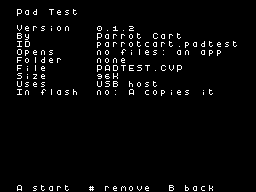
256 × 192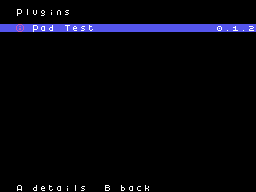
256 × 192README on the cart
This is what the cart shows for this plugin. It’s 82 lines long and 30 characters wide.
1,679 bytesPlain text
PAD TEST

This plugin shows on the TV
what the cart sees of a USB
game pad. Use it when a pad
doesn't work right in a game.
It doesn't open any files.

SETUP

Copy PADTEST.CVP into the
/PLUGINS folder on the card.
Start Pad Test from the
Plugins page in the menu.

The cart can't power a pad.
Plug the pad into a USB-C hub
with its charger plugged in,
or into a powered USB-A hub on
an adapter. Then plug the hub
into the cart. A pad with its
own battery still needs the
hub.

Pad Test 0.18 is the same test
built with an older version of
the USB code, TinyUSB 0.18.
It's there to compare the two.

CONTROLS

There are no controls on the
ColecoVision controller. Plug
a pad in and press its
buttons. Press RESET on the
console to go back to the
menu.

WHAT THE SCREEN SHOWS

- The top line counts the
  seconds since the test
  started.
- The next line counts plugs
  and unplugs.
- Below that are the two
  newest USB devices and their
  IDs.
- P1 is pad 1. It says SWITCH
  or HID, and turns green when
  the pad works. A Switch pad
  says READY once it's set up.
- RPT shows how many reports a
  second come from the pad.
- Next is the pad's last
  report, in hex.
- BTN shows the buttons you're
  pressing, or the sticks.
- P2 shows the same for pad 2.
- The last four lines are a
  log of what happened, with
  times.

PADS THAT WORK

- The Nintendo Switch Pro
  Controller, and 8BitDo pads
  in Switch mode.
- Plain HID pads, such as
  8BitDo pads in D-input mode,
  the DualShock 4, and
  Logitech pads in D mode.

CREDITS

- TinyUSB by Ha Thach, under
  the MIT license. The source
  is at
  https://github.com/hathach/t
  inyusb
- The plugin itself is by
  Parrot Cart.
README
This is the README.md from release v0.1.2. Images show up as links.
Pad Test
This plugin shows on the TV what the cart sees of a USB game pad. Use it when a pad doesn’t work right in a game. It doesn’t open any files.
Setup
Copy PADTEST.CVP into the /PLUGINS folder on the card. Start Pad Test from the Plugins page in the menu.
The cart can’t power a pad. Plug the pad into a USB-C hub with its charger plugged in, or into a powered USB-A hub on an adapter. Then plug the hub into the cart. A pad with its own battery still needs the hub.
Pad Test 0.18 is the same test built with an older version of the USB code, TinyUSB 0.18. It’s there to compare the two.
Controls
There are no controls on the ColecoVision controller. Plug a pad in and press its buttons. Press RESET on the console to go back to the menu.
What the screen shows
- The top line counts the seconds since the test started.
- The next line counts plugs and unplugs.
- Below that are the two newest USB devices and their IDs.
- P1 is pad 1. It says SWITCH or HID, and turns green when the pad works. A Switch pad says READY once it’s set up.
- RPT shows how many reports a second come from the pad.
- Next is the pad’s last report, in hex.
- BTN shows the buttons you’re pressing, or the sticks.
- P2 shows the same for pad 2.
- The last four lines are a log of what happened, with times.
Pads that work
- The Nintendo Switch Pro Controller, and 8BitDo pads in Switch mode.
- Plain HID pads, such as 8BitDo pads in D-input mode, the DualShock 4, and Logitech pads in D mode.
Credits
- TinyUSB by Ha Thach, under the MIT license. The source is at https://github.com/hathach/tinyusb
- The plugin itself is by Parrot Cart.
Build it yourself
You need the Raspberry Pi Pico SDK 2.1.1, an Arm GNU toolchain, CMake, Ninja, Python 3, sjasmplus and picotool. Releases are built with the Arm GNU Toolchain 9-2019-q4 (GCC 9.2.1) and picotool 2.3.1. With those you get the same file, byte for byte.
cmake -B build -G Ninja -DPICO_SDK_PATH=$HOME/pico-sdk
ninja -C build
This makes build/PADTEST.CVP. Copy it into the /PLUGINS folder on the card.
On Ubuntu, tools/ci/setup.sh installs the same tools that GitHub uses to
build each release.
CART-README.md is the text the cart shows on the plugin’s page. It is
the start of this README.
License
The plugin is under the MIT license (LICENSE). THIRD-PARTY.md lists
the parts that came from elsewhere, and their licenses.
Release details
We read these from GitHub when the plugin was listed.
- Release
v0.1.2, 2026-11-17- Image
- 95,744 bytes, loaded into RAM
- Plugin API
1- Source
- Code at
v0.1.2 - License
- MIT License
- Credits
- TinyUSB by Ha Thach, under the MIT license. The source is at https://github.com/hathach/tinyusb; The plugin itself is by Parrot Cart.
- SHA-256
- bbe16d4bcc56c7489999f7ce4f24f672c6b8e67dae12edeec556607f7e5a64b7
The code
Every plugin here has a public repo on GitHub, so you can read how it works.
Release notes
The newest version is first.
0.1.2
2026-11-17,
v0.1.2
Put it on your cart
Download PADTEST.CVP
The SHA-256 is above if you want to check the file.
Copy it to /PLUGINS
That folder is on the cart’s microSD card.
Start it
Press B for Home, open Apps, pick Pad Test and press A.